Every Unity project starts tidy. Then the player script needs to talk to the UI, the UI needs the score, the enemies need the player, and soon every script has a reference to every other script. Design patterns are the well-worn fixes for exactly these problems.
This guide covers the seven patterns we use most when building Unity games, each with a diagram, a short C# example and a note on when not to use it. The code works in Unity 2022 LTS and Unity 6.
Which pattern solves which problem?
| Problem | Pattern |
|---|---|
| ”Many scripts need the same manager” | Singleton |
| ”When X happens, several systems must react” | Observer |
”My Update is full of if (isJumping && !isDead...)” | State |
| ”Spawning bullets causes stutter” | Object Pool |
| ”I need undo, replays or rebindable input” | Command |
| ”Spawning logic is copied everywhere” | Factory |
| ”I want events without singletons” | ScriptableObject event channel |
1. Singleton: one instance, global access
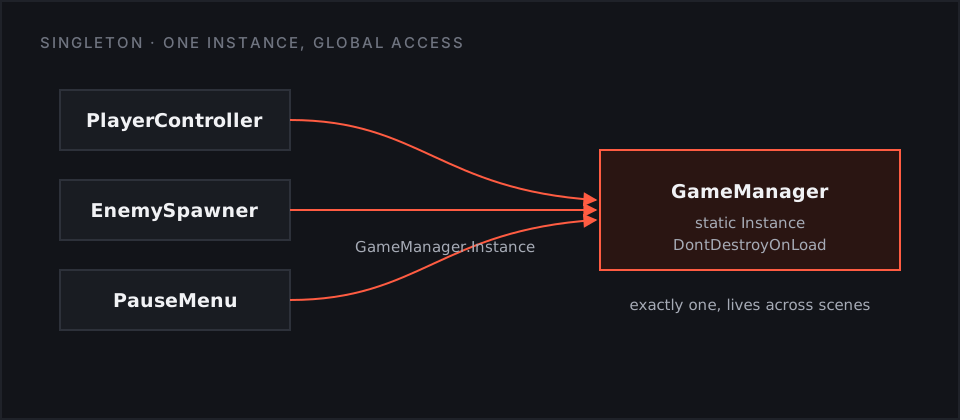
A singleton makes sure only one copy of a class exists and gives every script an easy way to reach it. It suits things that really are global: the game manager, audio, save system.
using UnityEngine;

public class GameManager : MonoBehaviour
{
    public static GameManager Instance { get; private set; }

    public int Score { get; private set; }

    void Awake()
    {
        // A second copy (e.g. after reloading the scene) removes itself.
        if (Instance != null && Instance != this)
        {
            Destroy(gameObject);
            return;
        }

        Instance = this;
        DontDestroyOnLoad(gameObject);
    }

    public void AddScore(int amount) => Score += amount;
}
Any script can now call GameManager.Instance.AddScore(10);.
Watch out: singletons are the most overused pattern in Unity. Each one is a hidden dependency. If Enemy calls four different singletons, you cannot drop that enemy into a test scene without all four. Keep a handful at most, and use events (next section) to pass information around.
2. Observer: one event, many listeners
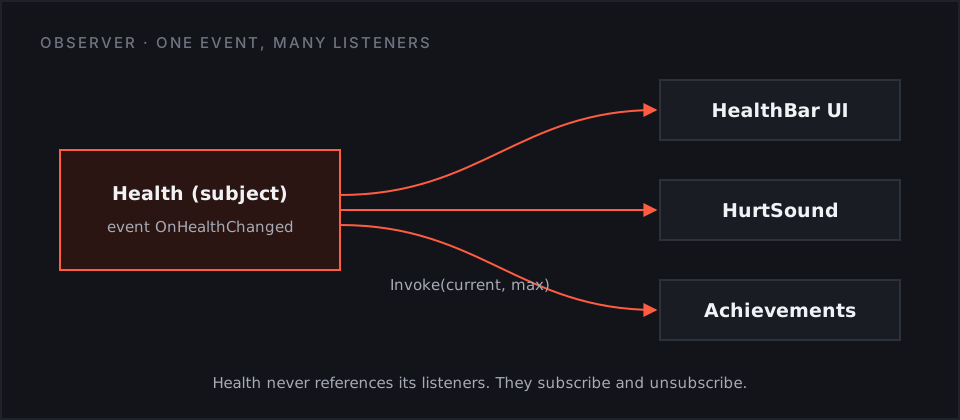
The observer pattern lets an object say “this happened” without knowing who cares. The sender is the subject; the listeners are observers. In C# this is just an event.
using System;
using UnityEngine;

public class Health : MonoBehaviour
{
    public event Action<int, int> OnHealthChanged; // current, max

    [SerializeField] int max = 100;
    int current;

    void Awake() => current = max;

    public void TakeDamage(int amount)
    {
        current = Mathf.Max(current - amount, 0);
        OnHealthChanged?.Invoke(current, max);
    }
}
using UnityEngine;
using UnityEngine.UI;

public class HealthBar : MonoBehaviour
{
    [SerializeField] Health health;
    [SerializeField] Slider slider;

    void OnEnable() => health.OnHealthChanged += UpdateBar;
    void OnDisable() => health.OnHealthChanged -= UpdateBar;

    void UpdateBar(int current, int max) => slider.value = (float)current / max;
}
Health has no idea a health bar exists. You can add a hurt sound, screen shake or an achievement tracker later without touching it.
Watch out: always unsubscribe in OnDisable (or OnDestroy). A destroyed object that is still subscribed causes MissingReferenceException errors and memory leaks.
3. State: one active state at a time
When a script is full of flags like isJumping, isAttacking and isStunned, bugs come from combinations nobody planned for. The state pattern gives each mode its own class, and only one is active at a time.
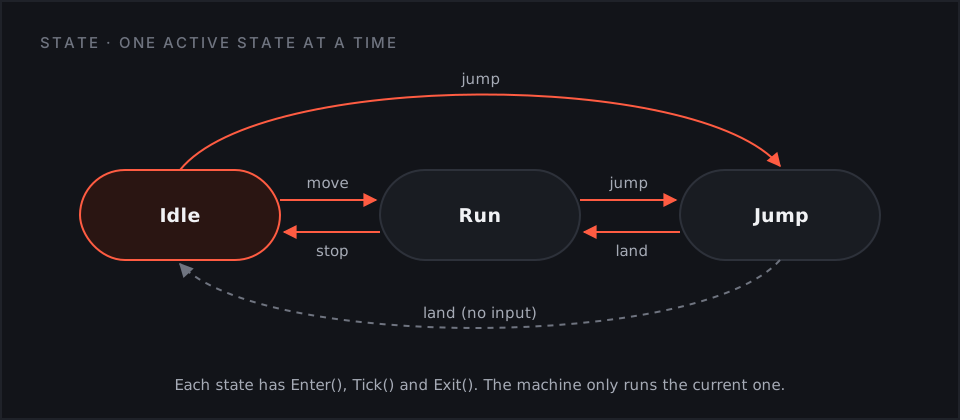
public interface IState
{
    void Enter();
    void Tick();   // called every frame
    void Exit();
}

public class StateMachine
{
    public IState Current { get; private set; }

    public void ChangeState(IState next)
    {
        Current?.Exit();
        Current = next;
        Current.Enter();
    }

    public void Tick() => Current?.Tick();
}
Each state holds only its own logic and decides when to leave:
using UnityEngine;

public class IdleState : IState
{
    readonly PlayerController player;

    public IdleState(PlayerController player) => this.player = player;

    public void Enter() => player.Animator.Play("Idle");

    public void Tick()
    {
        if (player.JumpPressed)
            player.Machine.ChangeState(player.Jump);
        else if (Mathf.Abs(player.MoveInput) > 0.1f)
            player.Machine.ChangeState(player.Run);
    }

    public void Exit() { }
}
The PlayerController owns the machine. It creates each state once, starts in idle, and then only ticks the current state:
using UnityEngine;

public class PlayerController : MonoBehaviour
{
    [SerializeField] Animator animator;

    public Animator Animator => animator;
    public StateMachine Machine { get; private set; }

    public IState Idle { get; private set; }
    public IState Run { get; private set; }
    public IState Jump { get; private set; }

    public float MoveInput => Input.GetAxisRaw("Horizontal");
    public bool JumpPressed => Input.GetButtonDown("Jump");

    void Awake()
    {
        Machine = new StateMachine();
        Idle = new IdleState(this);
        Run = new RunState(this);   // written the same way as IdleState
        Jump = new JumpState(this);
    }

    void Start() => Machine.ChangeState(Idle);

    void Update() => Machine.Tick();
}
This example reads input with Unity’s classic Input Manager. If your project uses the new Input System package, read the same two values from your input actions instead.
The same structure works for enemy AI (patrol, chase, attack) and for the whole game (menu, playing, paused, game over).
Watch out: for two or three simple modes, an enum and a switch is enough. Move to state classes when the switch gets long or states need their own data.
4. Object Pool: reuse instead of destroy
Instantiate and Destroy are slow and create garbage, which shows up as stutter on phones. A pool keeps inactive objects ready and hands them out again.
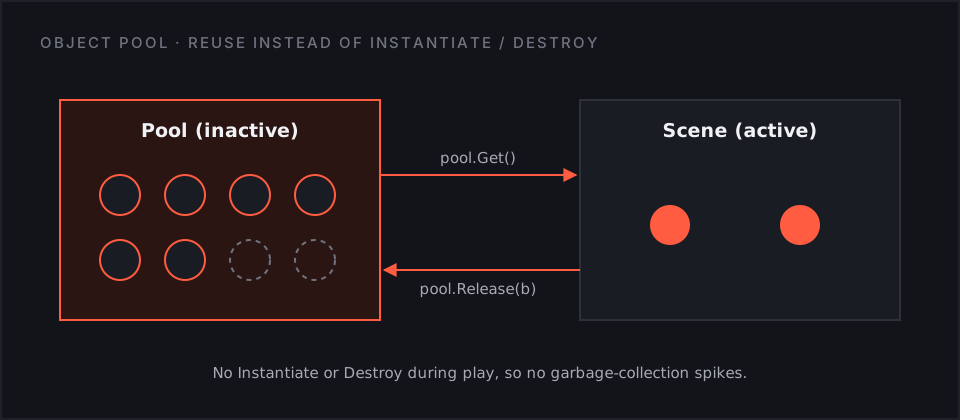
Unity ships a pool in UnityEngine.Pool, so you do not have to write your own:
using UnityEngine;
using UnityEngine.Pool;

public class BulletSpawner : MonoBehaviour
{
    [SerializeField] Bullet prefab;
    ObjectPool<Bullet> pool;

    void Awake()
    {
        pool = new ObjectPool<Bullet>(
            createFunc: () => Instantiate(prefab),
            actionOnGet: b => b.gameObject.SetActive(true),
            actionOnRelease: b => b.gameObject.SetActive(false),
            actionOnDestroy: b => Destroy(b.gameObject),
            defaultCapacity: 32,
            maxSize: 128);
    }

    public void Fire(Vector3 position, Quaternion rotation)
    {
        Bullet bullet = pool.Get();
        bullet.transform.SetPositionAndRotation(position, rotation);
        bullet.Init(pool); // the bullet calls pool.Release(this) when it hits or times out
    }
}
The bullet keeps a reference to its pool and returns itself when its lifetime ends:
using UnityEngine;
using UnityEngine.Pool;

public class Bullet : MonoBehaviour
{
    [SerializeField] float speed = 20f;
    [SerializeField] float lifetime = 2f;

    IObjectPool<Bullet> pool;
    float timer;
    bool released;

    public void Init(IObjectPool<Bullet> owner)
    {
        pool = owner;
        timer = lifetime;   // reset state every time it leaves the pool
        released = false;
    }

    void Update()
    {
        transform.Translate(Vector3.forward * speed * Time.deltaTime);

        timer -= Time.deltaTime;
        if (timer <= 0f) Release();
    }

    void OnTriggerEnter(Collider other) => Release();

    void Release()
    {
        if (released) return;   // releasing twice throws an error
        released = true;
        pool.Release(this);
    }
}
Watch out: reset everything when an object comes back out of the pool: velocity, health, trails, timers. Stale state is the classic pooling bug. We cover pooling for performance in our Unity mobile optimization guide.
5. Command: turn actions into objects
A command wraps an action (“move this unit right”) in an object. Once actions are objects you can queue them, undo them, record them for replays, or rebind them to different buttons.
using System.Collections.Generic;
using UnityEngine;

public interface ICommand
{
    void Execute();
    void Undo();
}

public class MoveCommand : ICommand
{
    readonly Transform unit;
    readonly Vector3 delta;

    public MoveCommand(Transform unit, Vector3 delta)
    {
        this.unit = unit;
        this.delta = delta;
    }

    public void Execute() => unit.position += delta;
    public void Undo() => unit.position -= delta;
}

public class CommandHistory
{
    readonly Stack<ICommand> done = new Stack<ICommand>();

    public void Run(ICommand command)
    {
        command.Execute();
        done.Push(command);
    }

    public void Undo()
    {
        if (done.Count > 0) done.Pop().Undo();
    }
}
It fits turn-based and puzzle games (undo a move), level editors and replay systems.
Watch out: it is extra code for a simple action game. If you never need undo, replay or queued actions, skip it.
6. Factory: create objects in one place
A factory puts all the “which prefab, with what setup” logic behind one method. Spawners, wave systems and level loaders call the factory instead of each doing their own Instantiate.
using System;
using UnityEngine;

public enum EnemyType { Grunt, Archer, Boss }

public class EnemyFactory : MonoBehaviour
{
    [SerializeField] Enemy gruntPrefab;
    [SerializeField] Enemy archerPrefab;
    [SerializeField] Enemy bossPrefab;

    public Enemy Create(EnemyType type, Vector3 position)
    {
        Enemy prefab = type switch
        {
            EnemyType.Grunt => gruntPrefab,
            EnemyType.Archer => archerPrefab,
            EnemyType.Boss => bossPrefab,
            _ => throw new ArgumentOutOfRangeException(nameof(type)),
        };

        return Instantiate(prefab, position, Quaternion.identity);
    }
}
Enemy here is your own enemy script on each prefab. Later you can make the factory pull from an object pool, and nothing that calls Create has to change.
Watch out: if you only ever spawn one kind of thing from one place, a factory adds nothing.
7. ScriptableObject event channels: events without singletons
This is the Unity-specific twist on Observer. The event lives in a ScriptableObject asset. Senders and listeners both reference the asset in the Inspector, so they never reference each other and no singleton is needed.
using System;
using UnityEngine;

[CreateAssetMenu(menuName = "Events/Void Event Channel")]
public class VoidEventChannel : ScriptableObject
{
    public event Action OnRaised;

    public void Raise() => OnRaised?.Invoke();
}
Create an asset called PlayerDied. The player calls playerDied.Raise(). The game-over screen, the music and the analytics each subscribe in OnEnable and unsubscribe in OnDisable. Designers can wire new reactions without opening a script.
Watch out: with many channels it gets hard to see who raises what. Name the assets clearly and keep them in one folder.
How to pick, in practice
- Start simple. Add a pattern when you feel the pain it solves, not before. We find the fun first with rough code, then tidy up what survives.
- Prefer events over direct references between systems. It is the cheapest way to keep a project flexible.
- Limit singletons to a few true globals.
- Pool anything you spawn often, especially on mobile.
- Use a state machine as soon as flags start to multiply.
Patterns are tools for keeping a game easy to change, which matters more than anything else in production. If you want a team that builds this way, see our Unity game development services or read about our indie game studio in Pakistan.